Pick your role below to see just the steps that apply to you. Screenshots are from the Android app; the iPhone app and the website work the same way.
Finding your way around the phone app
Five tabs run along the bottom. You only see the ones your role is allowed to use.
- Home — your figures at a glance. Tap any number to see the complaints behind it. Buttons here start a new complaint or report an emergency.
- Complaints — the lists you are entitled to: My Work (assigned to you, maintenance staff only), All complaints (officers and above) and Reported by me. The website offers the same three as tabs across the top of the Complaints page.
- Emergency — report a hazard that needs someone now.
- Alerts — your notifications. The red number is how many are unread.
- More — everything else you can manage: reports, staff, campuses and locations, users, categories, emergency types, activity history — plus this manual, support and sign out.
Your initial in the top-right corner opens the same account menu at any time.
For students, faculty and staff. Report a maintenance problem and follow it until it is fixed. You sign in with your mobile number — no password to remember.
Signing in
-
Stay on the "Staff & Admin" tab
It is the tab the page opens on. The other one, Maintenance Team, is only for the maintenance technicians who sign in with a code on their phone.
-
Press "Sign in with Raisoni Education Mail ID"
Google asks which account to use. Choose your college address — the one ending @raisoni.net or your institute's @ghr… address. A personal Gmail address will be refused.
On a shared computer, check the account shown is yours before continuing — Google offers whoever used the machine last. -
You are taken straight back, signed in
No password is typed and none is stored. If you are already signed in to your college Gmail in that browser, it takes one press.
-
Complete your profile (first time only)
Give your name and pick your campus. You will not be asked again.
Reporting a problem
-
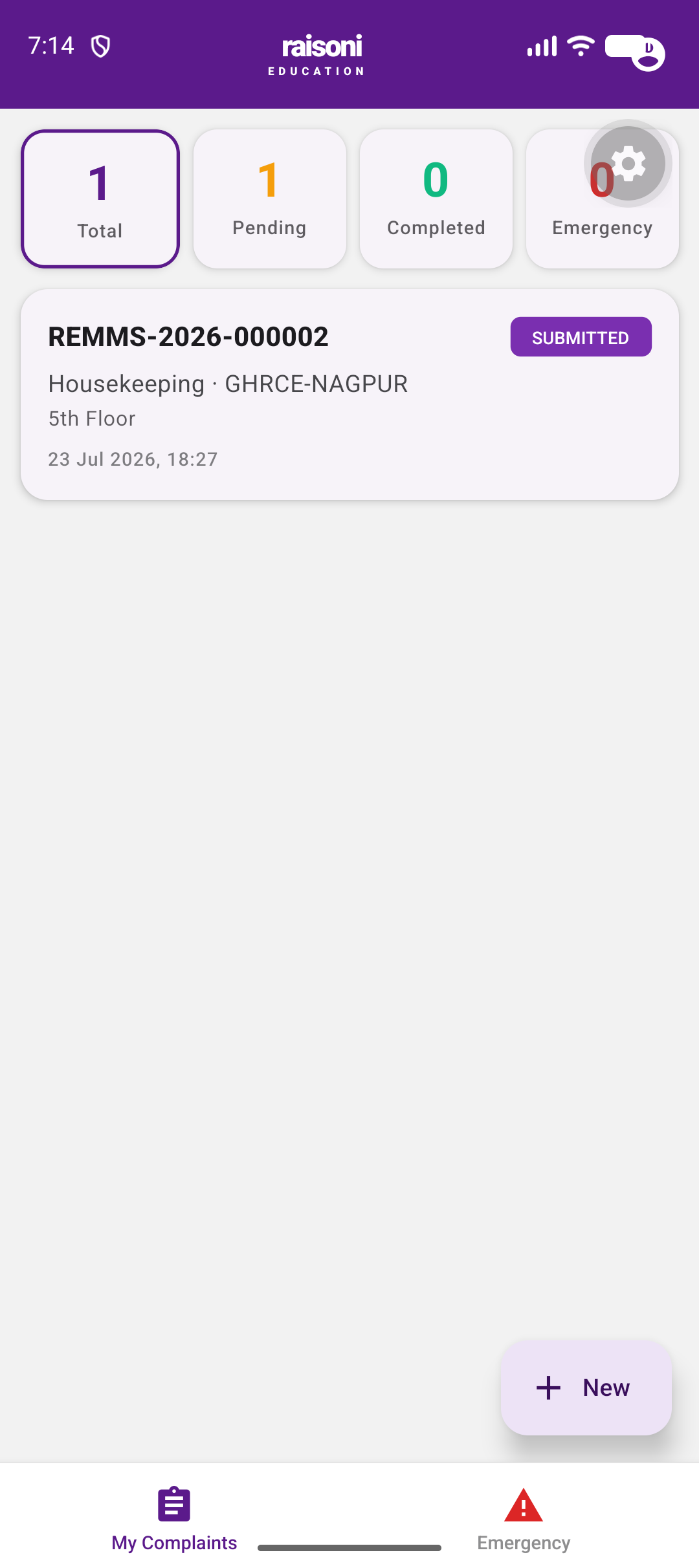
Tap "New Complaint"
On the phone app it is on the Home screen, and also the purple button at the bottom-right of your complaints list. On the web it is at the top of the Complaints page.
-
Say where the problem is
Choose your campus, the category (Electrical, Plumbing, …) and the building. Then describe the spot in your own words — for example "2nd floor washroom, near the lift". Floor is optional.
The building is required, because it decides which technician the job goes to: each block can have its own electrician or plumber. Picking the wrong one sends the job to the wrong person.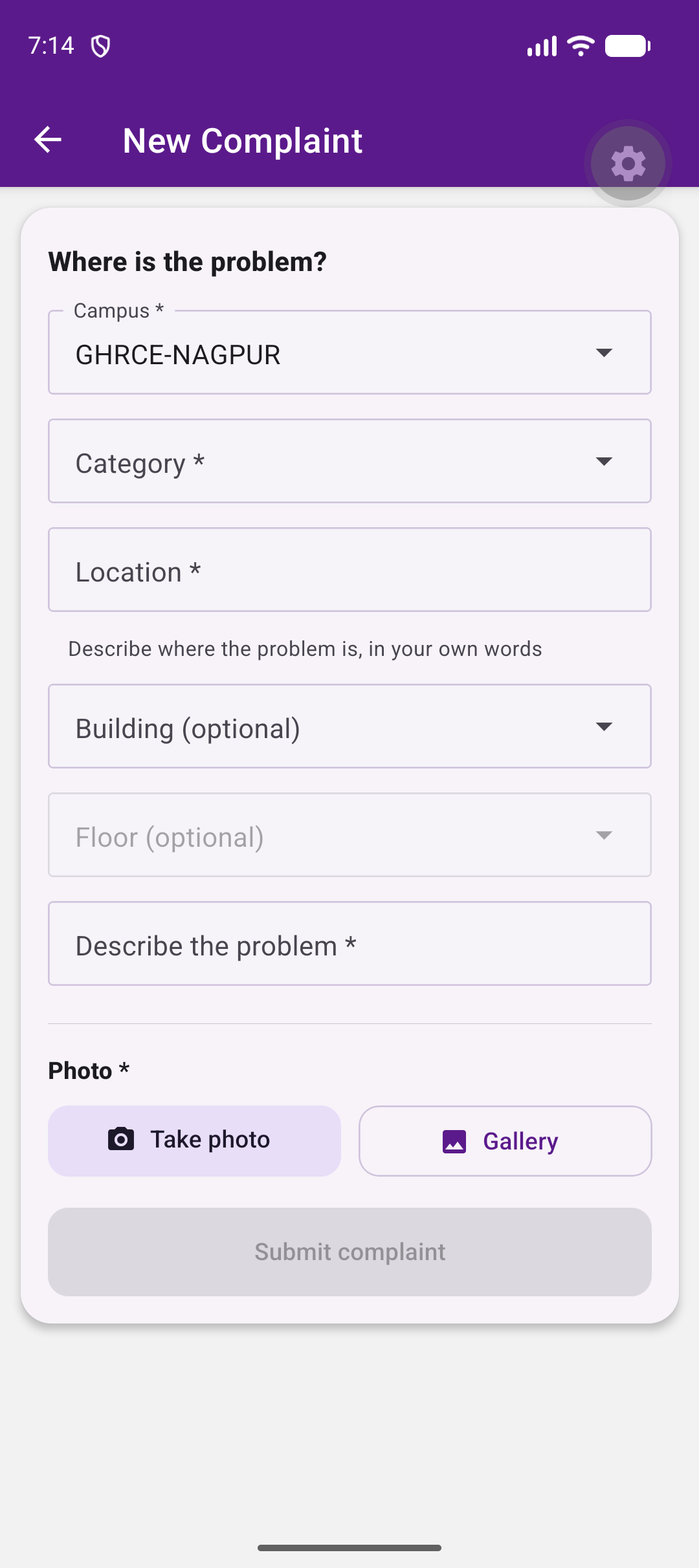
-
Add a photo
Take a photo or pick one from your gallery.
A photo is required for most categories. It helps maintenance staff find and understand the problem, which gets it fixed faster.A few categories do not need one — IT Support, for example, where the problem is usually a password, a login or a network fault with nothing to photograph. Pick the category first and the form tells you which applies: the heading reads Photo (optional) and you can submit without one. Attach a screenshot if you have a useful error message.
-
Submit
You get a ticket number like
REMMS-2026-000123. The complaint is sent automatically to the right maintenance staff member for that category.
Following your complaint
-
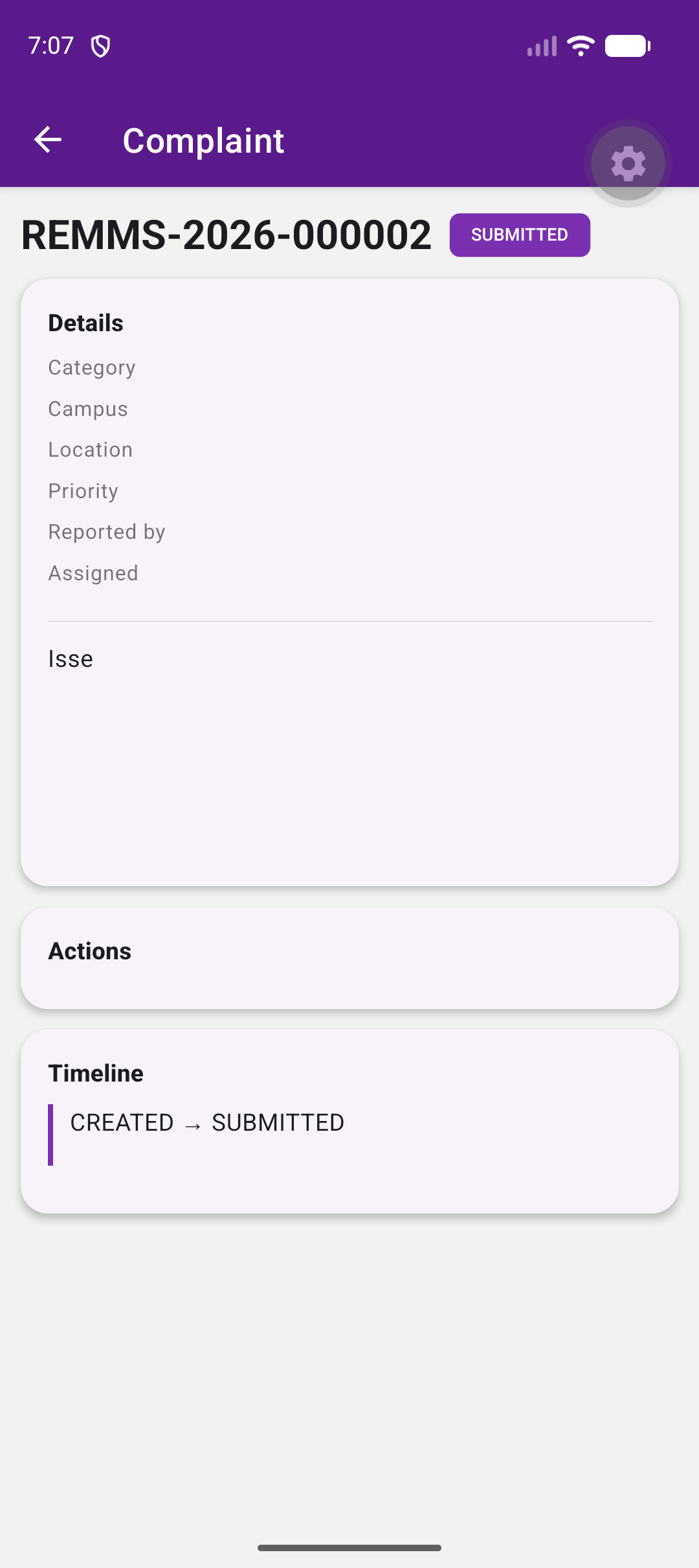
Open it any time to see progress
The timeline shows every step — assigned, accepted, work started, completed and resolved — with who did it and when. You are also notified by SMS, email and push at the key moments.
-
If it is put on hold
Sometimes work must wait — for a part to arrive, for example. You will be told why and when work will resume.
-
When it is marked resolved
The staff member who did the repair marks it done, with photos of the finished work and sometimes a note — all of which you can see. The complaint is resolved at that moment, and you can rate the work.
-
Not actually fixed? Reopen it
Open the complaint and tap Reopen, then say what is still wrong.
Reopened complaints are treated as priority and go to the top of the team's list. You can reopen a complaint at any time — there is no deadline.
Reporting an emergency
-
Use the red EMERGENCY button
Pick the type of emergency (fire, electrical hazard, lift failure, medical …), choose the campus, and add a short description if you can.
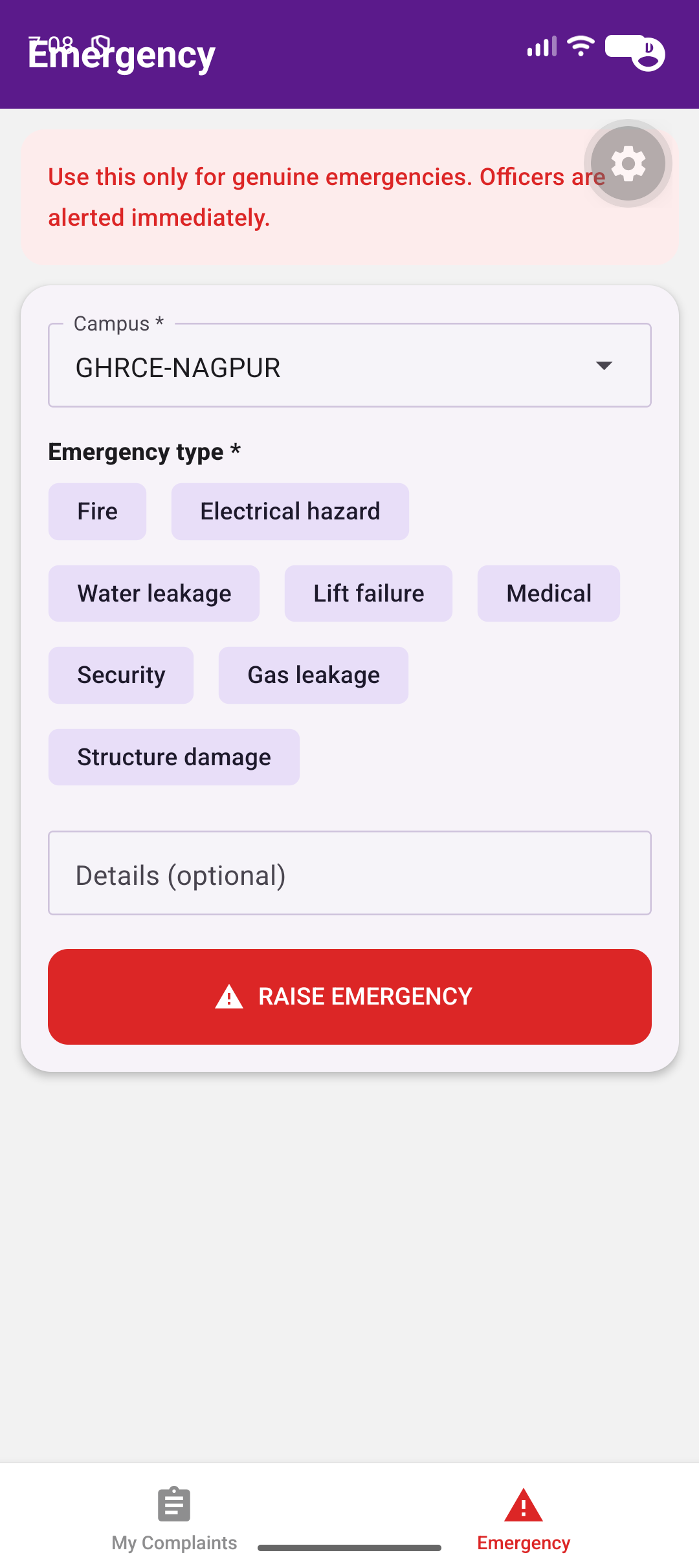 Campus officers, the director, the registrar and administrators are alerted immediately by SMS, email and push. Use this only for genuine emergencies — and for anything life-threatening, call emergency services and campus security first.
For maintenance staff. See the jobs assigned to you and record the work you have done. You sign in with the username and password your institute gave you.
Signing in
-
Choose the "Maintenance Team" tab
The page opens on Staff & Admin, which is for office staff. Tap across to Maintenance Team.
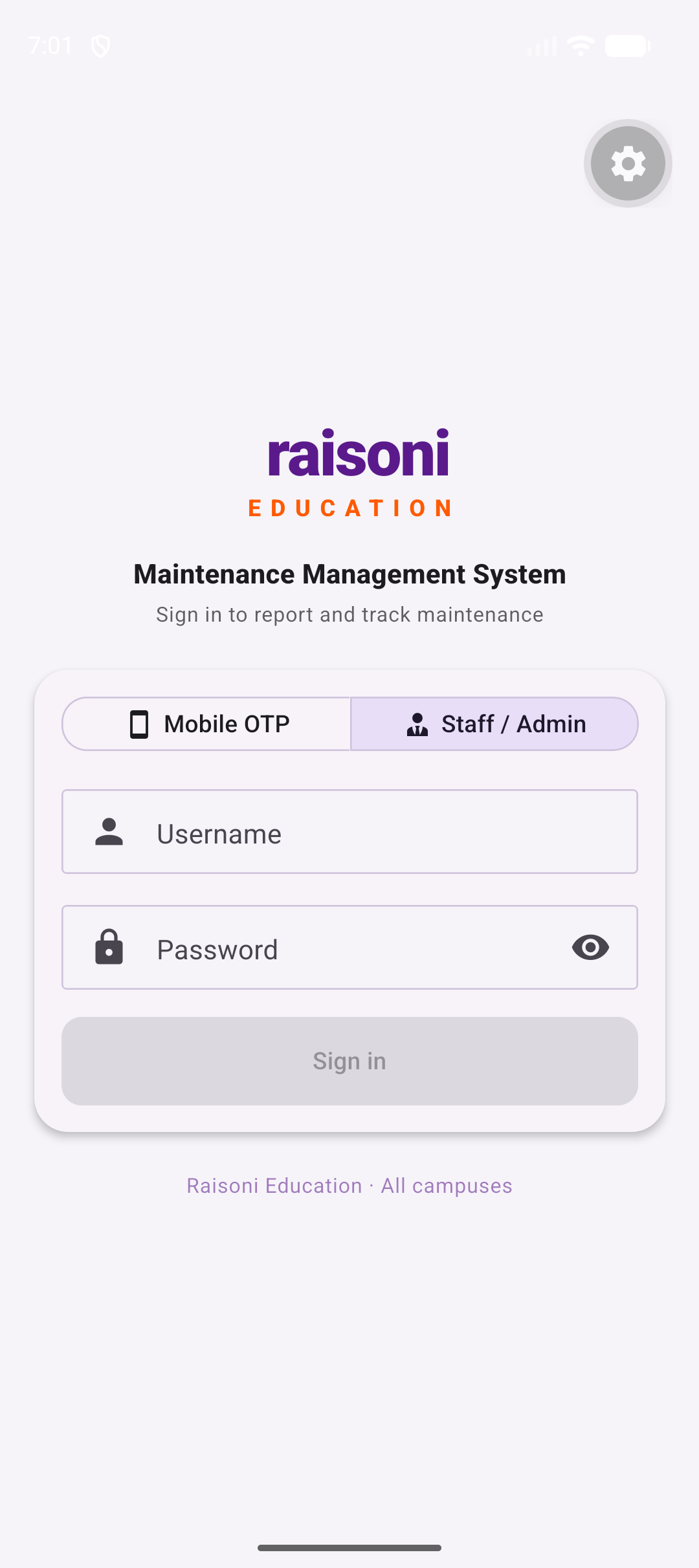
Tap the image to enlarge
-
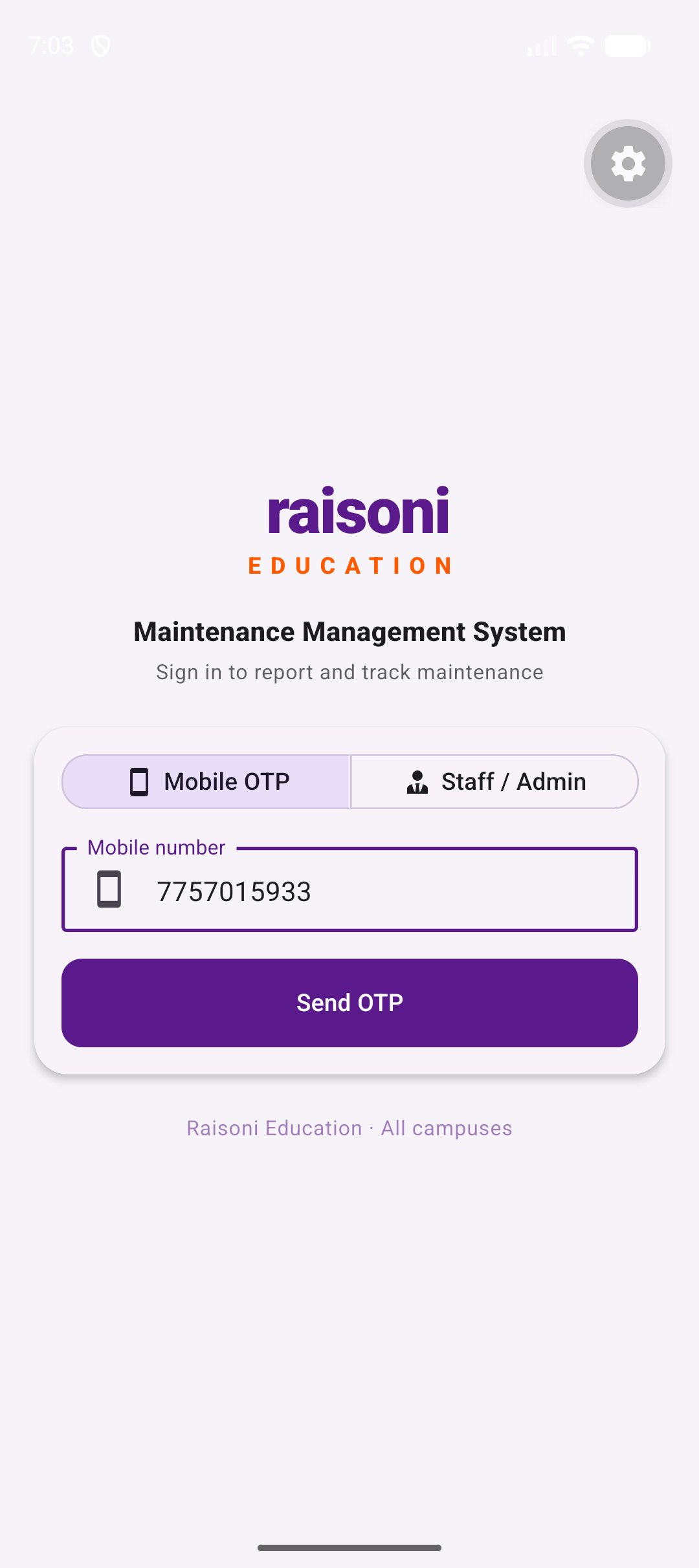
Enter your mobile number and tap "Send OTP"
Use the number your administrator registered for you. A 6-digit code arrives by SMS.
-
Type the code and continue
The code is valid for 5 minutes. Tap Verify & Continue.
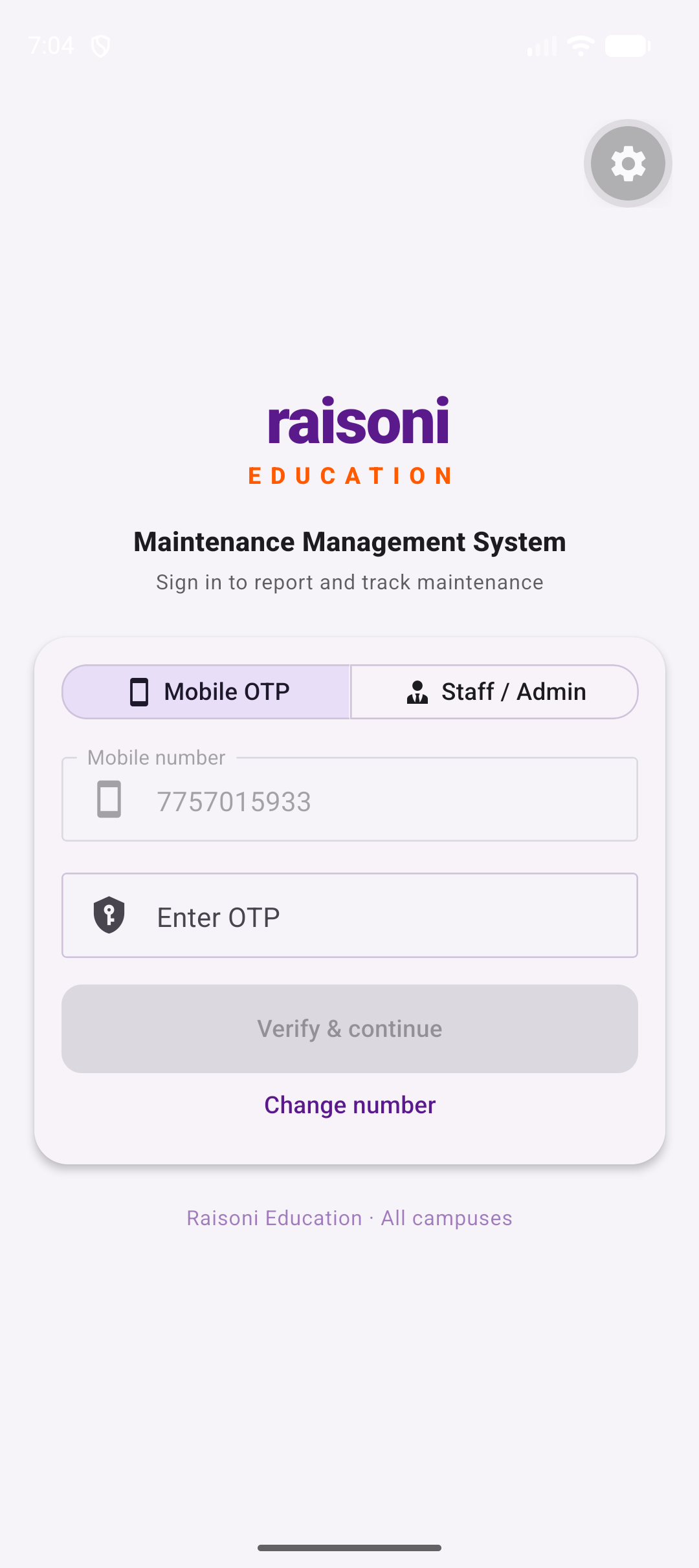 If it says your account signs in with a Raisoni email instead, your account is not registered as maintenance staff — ask your Administrative Officer to check it.
Your job queue
-
Open "My Work"
Go to Complaints and choose My Work — the tab along the top on the website, the selector under the title in the phone app. This is everything assigned to you; filter it by status from there.
"My Work" is the work assigned to you. Reported by me, next to it, is separate — it is for problems you reported, like any other user. -
Accept the job
Open a complaint and tap Accept. This tells the officer you have seen it.
-
Start work
Tap Start work when you begin. The reporter can see this.
-
Need materials?
Raise a material request from the complaint. It goes to the officer for approval, and work pauses until they decide.
Finishing a job
-
Tap "Mark completed" and add photos
Take a photo of the finished work, or pick from your gallery. You can add up to five. Optionally write what you did.
At least one photo is required. It is your proof of work — the person who reported the problem sees it, and so does your officer. -
That's it — the complaint is resolved
The complaint moves straight to Resolved. There is no approval to wait for. The reporter is told the job is done and is asked to rate it.
If the reporter or an officer says the problem is still there, they reopen the complaint with a note. It comes back to your queue, flagged as priority, and you are notified.
For Administrative Officers, Campus Directors and Registrars. Oversee all complaints at your campus, control who does the work, and send back anything that was not properly fixed. You only ever see your own institute's data.
Day to day
-
Watch the dashboard
New, assigned, in progress, overdue and completed counts for your campus. Tap any figure to drill into exactly those complaints.
-
Complaints assign themselves
Every new complaint goes automatically, round robin, to a staff member who handles that category at that campus — so nothing sits unallocated.
-
Reassign when you need to
Open a complaint and tap Reassign staff. You see who is qualified for that category and how many open jobs each person already has.
Putting work on hold
-
Tap "Put on hold"
Choose when work should resume and give a reason — a part is on order, the room is in use during exams, and so on.
Both the date and the reason are required. The reporter is told both, so they are not left wondering. -
Resume when ready
Tap Resume work. The complaint returns to exactly the stage it was parked at, and everyone is notified.
Finished work
-
Jobs resolve themselves
When a staff member marks a job done, the complaint is Resolved there and then — it does not queue up for your approval. Nothing is waiting on you, and the reporter is not left looking at a repair that was finished days ago.
-
Check the after-repair photos
Every completion carries at least one photo. Open any resolved complaint to see the photos, the staff member's note, and the whole timeline.
-
Not satisfied? Reopen it
Tap Reopen and say what still needs doing. The complaint goes back to the maintenance team, who are notified immediately.
A note is required, so whoever picks it up knows what was wrong with the repair. -
Handle reopened complaints first
Anything reopened after being resolved — by you or by the reporter — is flagged in red and moved to the top of the list. Treat these as priority.
Your team
-
Register maintenance staff
Maintenance staff in the menu — on the phone it is under More. Add a person, tag them with the complaint categories they handle, and optionally email them their sign-in details. One person can cover several trades. Use Bulk upload to add many at once from Excel.
A staff member with no categories is not in the rotation and will never be auto-assigned work. Watch for the orange "not in rotation" tag. -
Track performance
Staff performance shows, per person, how much was assigned and completed, the on-time rate, average resolution time and the reporters' ratings.
For System and Super Administrators. Everything an officer can do, across every campus, plus system configuration.
Setting up an institute
-
Campuses
Add each institute with a short unique code, and name its director, registrar and administrative officer.
-
Locations
Build the campus structure — buildings, floors, rooms — so reporters can pinpoint a problem.
-
Categories & SLA
Define complaint categories and how quickly each must be responded to and resolved. Deactivate a category to retire it without losing its history.
-
Emergency types
Edit the hazard list offered by the emergency button, or add your own.
People
-
Users
Create accounts for directors, registrars, officers and staff. You can set a specific password or use the system default, and email the sign-in details straight to them.
-
User activity
A live record of who signed in when, and every change anyone made. Filter it, sort it and export it to Excel.
What each status means
Reported, waiting to be picked up.
Given to a maintenance staff member.
The staff member has seen it.
Work is under way.
Paused until a set date, with a reason.
Waiting on parts or approval.
The staff member finished the job. You may still reopen it.
Reported as not fixed — handled on priority.
Finished and settled.
Common questions
Which tab do I use?
Staff & Admin — students, faculty, Administrative Officers, Campus Directors, Registrars and administrators. You sign in with your Raisoni email account.
Maintenance Team — the technicians who carry out repairs. They sign in with a code sent to their phone.
If you try the wrong one the app tells you which to use, and shows part of the email address on your account so you know which one to pick.
It says "Personal Gmail addresses are not accepted".
You chose a personal account on the Google screen. Press Sign in with Raisoni Education Mail ID again and pick the address ending @raisoni.net or your institute's @ghr… address. If yours is not listed, add it to that browser through Google first, or use a private window.
I did not get my OTP. (Maintenance team)
Wait a few seconds and check your signal, then tap Send OTP again. If it still does not arrive, ask your administrator to check the account has the right mobile number.
Why must I add a photo — and why not always?
A photo shows maintenance staff exactly what and where the problem is, so it is fixed faster and without a second visit. Staff must likewise photograph the finished work.
It is not demanded where it would serve no purpose. Categories such as IT Support are usually a password, a login or a network fault, so the form marks the photo optional once you choose one of them. Your administrator decides which categories work that way, under Categories.
Do I have to share my location?
No. Location is optional and is only read at the moment you submit a complaint. Declining it never prevents you reporting a problem.
My complaint was marked resolved but the problem is still there.
Open it and tap Reopen, then describe what is still wrong. It goes back to the team as priority work. There is no time limit on reopening.
I am maintenance staff and cannot see my jobs.
Open Complaints and switch to My Work — not "Reported by me". If "My Work" is not offered at all, your account does not hold the Maintenance Staff role; ask your Administrative Officer to check it. If it is there but empty, your account may not be tagged with any complaint categories yet, so nothing is being routed to you — the same person can add those.
How do I change my password?
This app no longer has a password of its own. Staff, students and administrators sign in with their Raisoni email account, so the password is your Google one — change it through Google, and it applies here and everywhere else at the college. The maintenance team signs in with a code sent to their phone and has no password at all.
Still stuck? See Support or email academic.operations@raisoni.net.